
What is a Stream Deck, and Why Does Every iRacer Need One?
Whether you are trying to navigate iRacing's black boxes mid-corner or managing pit strategy during a multi-class endurance stint, reaching for a keyboard or hunting through wheel-mounted rotaries isn't always ideal. Enter the Elgato Stream Deck—a device originally built for content creators that has quickly become one of the most versatile button boxes in sim racing.
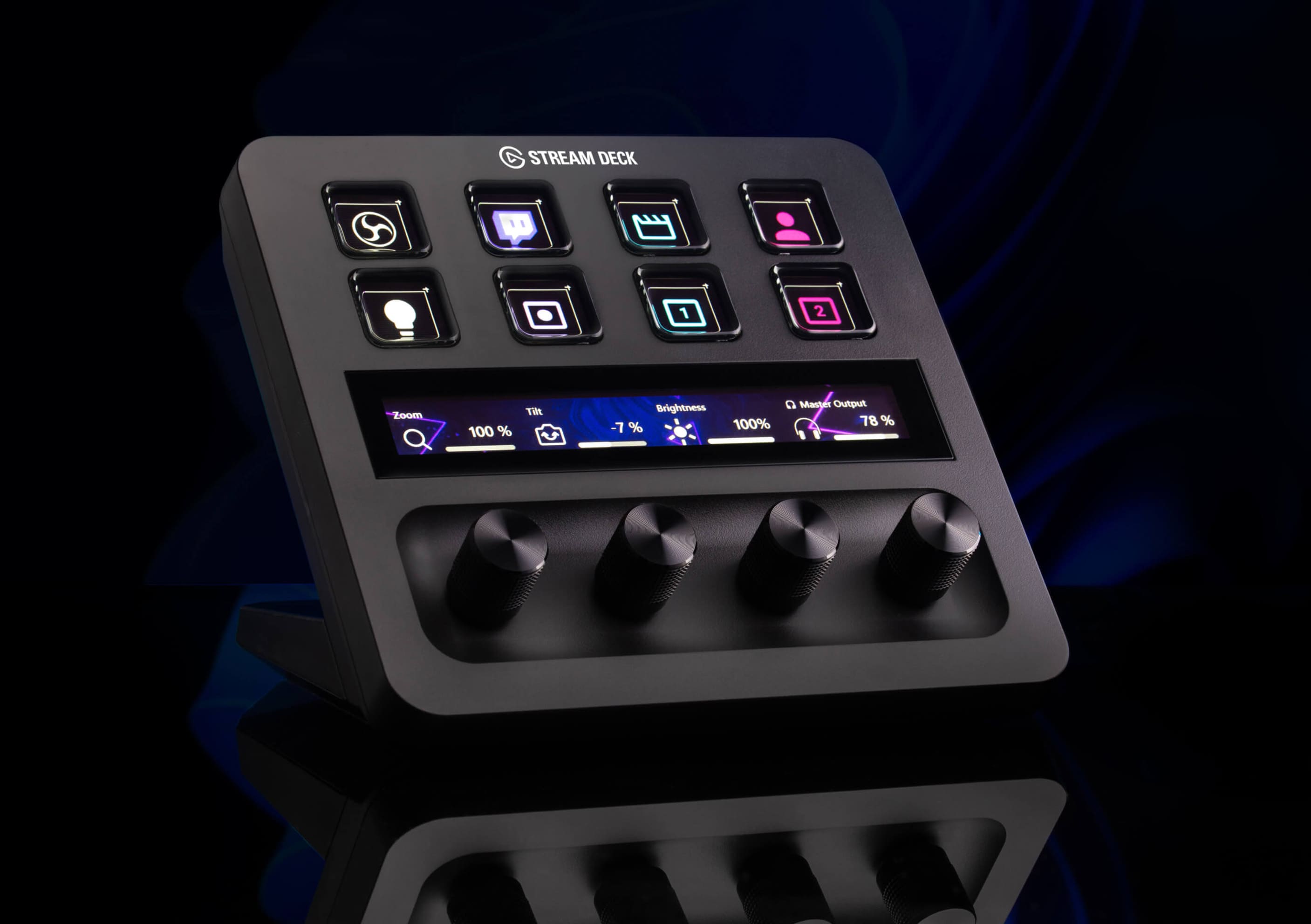
Here is everything you need to know about what a Stream Deck is, how it integrates with iRacing, and why it might be the ultimate upgrade for your cockpit setup.
FAQ: Stream Decks in Sim Racing
What is a Stream Deck?
A Stream Deck is a physical control pad featuring customizable, tactile buttons with integrated mini LCD screens behind each key.
Instead of a static physical button box where you have to label buttons with tape or sticker sheets, each key on a Stream Deck can display custom graphics, dynamic text, live telemetry data, or animated icons. When pressed, keys can trigger single keybinds, complex macros, or multi-step scripts across your PC.
Stream Deck with iRacing keybindings. Source: SIMRACINGCOCKPIT.gg
How Does a Stream Deck Help in iRacing?
1. Instant Tactile Pit Stops & Fuel Management
During a race, using the arrow keys to adjust tire changes, tear-offs, and fuel levels in the iRacing Black Box takes focus away from driving. With a Stream Deck, you can program dedicated keys to:
- Uncheck all tire changes with a single tap.
- Request specific fuel amounts or clear fuel macros instantly.
- Toggle visor tear-offs or windshield wipers on demand.
2. Dedicated Ignition, Starter, and Car Controls
Many high-end sim wheels lack enough physical buttons to map every secondary function. A Stream Deck serves as a secondary console for non-essential or pre-race controls:
-
In-car adjustments: Ignition, starter, brake bias, traction control (TC), and ABS maps.
- Environment: Flashing headlights, toggling pit limiter, and wiper speeds.
3. One-Touch Radio & Voice Chat Commands
Navigating voice channels during team endurance races or assigning quick chat macros is effortless:
- Mute or switch Discord / iRacing voice channels instantly.
- Send automated text macros like "Pass Left," "Sorry!," or "Pitting This Lap."
4. iRacing Live Telemetry Integration
Through third-party plugins (such as iRacing StreamDeck Plugin by iR-Tools or BarRaider plugins), Stream Deck keys can display real-time live data directly on the physical button icons:
-
Flag status: Keys flash green, yellow, or blue according to track flags.
-
Fuel remaining: Display exact remaining fuel or required pit stop fuel calculated live.
- Current position & lap counts: Live stint tracking on the display key.
Stream Deck Models Compared for Sim Racing
| Model | Keys / Inputs | Best For |
| Stream Deck Mini | 6 LCD Keys | Compact rigs or dedicated fuel/pit macro pads. |
| Stream Deck MK.2 | 15 LCD Keys | The sweet spot for most iRacers; plenty of grid space for controls & telemetry. (View the Stream Deck on Grid Logic) |
| Stream Deck XL | 32 LCD Keys | Complete cockpit command centers and team endurance racing. |
| Stream Deck + | 8 LCD Keys + 4 Rotary Dials | Ideal for drivers who prefer physical knobs for Brake Bias, TC, and Volume. |
How Hard Is It to Set Up for iRacing?
Setting up a Stream Deck for iRacing takes less than 15 minutes:
-
Plug & Install: Connect via USB and download the official Elgato Stream Deck software.
-
Download Sim Icons or Plugins: Install free iRacing icon packs or telemetry plugins from the Elgato Marketplace or GitHub.
-
Map Keybinds: Match the key assignments in the Stream Deck software to your iRacing control settings (or map them directly via keyboard shortcuts/vJoy).
-
Mount to Rig: Mount the deck to your aluminum profile or wheel base using standard 2020 profile brackets or RAM mounts.
The Bottom Line
While a Stream Deck won't automatically make you a second faster per lap, it removes operational friction during high-stress race moments. By bringing pit strategy, car controls, and telemetry straight to your fingertips, it lets you keep your eyes where they belong—on the apex.
Step-by-Step Guide: Setting Up the iRacing Telemetry Plugin
While basic keyboard hotkeys work for static commands, installing a dedicated iRacing Telemetry Plugin allows your Stream Deck to communicate directly with iRacing’s SDK. This unlocks dynamic features like real-time flag flashes, live fuel calculations, active pit status indicators, and automatic car setup readouts directly on your keys.
Follow these steps to get live telemetry up and running on your Stream Deck:
Make sure your Elgato Stream Deck software is updated to v7.1 or newer.
-
Open the Stream Deck app on your PC.
-
Click the Settings (gear icon) in the top right.
-
Click Check for Updates and let it install the latest software version.
Download the plugin directly through Elgato’s ecosystem:
-
Click the Marketplace icon (the colorful store icon) in the top-right corner of your Stream Deck desktop app.
-
In the search bar, type iRaceDeck or iRaceIT.
-
Select the plugin and click Install.
Note: Installing the plugin automatically adds a new category of drag-and-drop telemetry actions into your Stream Deck side panel.
-
Look at the right-hand action list under the newly added iRacing category.
-
Drag desired actions onto your physical key grid:
-
Flags & Spotter: Flashes red, yellow, green, or blue based on track state.
-
Live Fuel & Pit Calculator: Displays remaining fuel and calculates refueling requirements on-screen.
-
In-Car Adjustments: Displays current Brake Bias, Traction Control, and ABS values.
-
For the plugin to read live telemetry from iRacing, Windows permissions must allow the local background process:
-
Run iRacing as Administrator if prompted by UAC settings.
-
Ensure your firewall is not blocking local loopback connections (
127.0.0.1/ SDK port communication).
-
Boot up iRacing and hop into a Solo Practice session.
-
Once on track, your Stream Deck keys will transform: fuel values will populate live, flag indicators will show active session flags, and pressing pit/car keys will send commands directly to the sim.
💡 Pro Tip: Troubleshooting Telemetry Connection Issues
If your Stream Deck keys display a yellow warning triangle or static numbers while driving:
-
Restart the Stream Deck App: Fully quit the Stream Deck app from the Windows system tray and re-open it after iRacing is loaded.
-
Check iRacing's Telemetry Toggle: Ensure iRacing is actively rendering live telemetry output (enabled by default in
app.ini). -
Avoid Conflicts: Close competing third-party apps if they lock exclusive SDK access, though most modern sim tools (SimHub, CrewChief, iRacing) share SDK data seamlessly.
Customizing Your Deck: Icon Packs & Rig Mounting Solutions
To make your Stream Deck look and feel like an authentic, factory-built motorsport button box, you’ll want high-visibility icons and a rock-solid mounting position on your aluminum chassis.
Where to Find Sim Racing Stream Deck Icon Packs
Instead of relying on generic stock icons or plain text, custom sim racing icon packs give you instant visual recognition while driving at speed.
1. Elgato Marketplace (Official & Free Community Packs)
The built-in Elgato Marketplace features a growing library of dedicated racing icon sets:
-
Free Options: Look for popular community creations like the Lovely Sim Racing collection, which offers clean, minimalist 2D vectors tailored for modern GT3, LMDh, and open-wheel dashboards.
- Premium Sets: Creators like iConCity and falbart offer comprehensive packs ($5–$15) covering game launchers, telemetry indicators, and car setup variables across iRacing, ACC, and Assetto Corsa EVO.
2. Creator Stores & Marketplaces (Etsy, Gumroad, & Simfactory)
If you want ultra-realistic physical button replicas (such as Moza, Fanatec, or Porsche GT3 button designs), independent creators publish extensive packs on Etsy and Gumroad:
-
Simfactory & ComplxSimworks: Provide 300+ to 500+ icon bundles with color-coded borders (red for engine/danger, yellow for pit macros, green for radio).
3. DIY Custom Icons with Elgato Key Creator
Want matching icons for a niche command or specific custom livery?
-
Use Elgato’s web-based Key Creator tool to build custom 288×288 PNG icons directly in your browser.
-
Many paid icon packs include
.PSD(Photoshop) template files so you can tweak background colors or text overlays while keeping a unified aesthetic.
How to Mount a Stream Deck to Aluminum Profile Rigs (8020 / 4040)
An aluminum extrusion cockpit (like a SimLab, Track Racer, or RigMetal setup) offers the perfect mounting foundation. Because standard desktop stands wobble under aggressive button presses, mounting directly to profile channels is essential.
Stream Deck mounted on a sim rig. Source: SIMRACINGCOCKPIT.gg
Mounting Options Compared
| Mounting Type | Best For | Pros |
| 3D-Printed Profile Brackets | Direct side mounting on 15-series or 40-series profile | Flush, compact look; fits snugly using M5/M8 roll-in t-nuts. |
| 2-Axis / 3-Axis Swivel Arms | Drivers who frequently adjust seating positions | Allows quick tilt and rotation toward your line of sight without unbolting. |
| RAM Mounts & Ball Joints | Articulated positioning away from wheel rims | High vibration resistance; easily handles hard presses during racing. |
| Integrated Keyboard/Deck Combos | Compact cockpits with limited upright space |
Combines keyboard trays and Stream Deck holders into a single profile bracket. |
Rig Setup Tips
-
Use Roll-In T-Nuts: Use spring-loaded roll-in t-nuts into your 4040/8020 slot channels so you don't have to disassemble uprights to insert mounting hardware.
-
Position within Peripheral Vision: Mount the Stream Deck just beside your wheel rim—close enough for a quick thumb or index finger reach without taking your hand entirely off the wheel.
-
Cable Strain Relief: Run your USB cable through the rear extrusion channels using 8mm slot covers or cable clips to keep wires clear of wheel base force-feedback rotation and pedal linkages.
Ready to Elevate Your Cockpit Setup? Let Grid Logic Build Your Ideal Rig
Navigating plugins, routing USB hubs, and mounting accessories to aluminum profile can be a time-consuming hassle when all you want to do is hit the track.
Whether you’re adding a Stream Deck, upgrading your wheel base, or designing a turn-key cockpit from the ground up, Grid Logic is here to take the friction out of sim racing hardware.
Why Work with Grid Logic?
-
Turn-Key Assembly & Integration: We don't just sell or assemble hardware; we fine-tune your cockpit layout, clean up cable management, and configure your software and telemetry plugins so everything works seamlessly out of the box.
-
Tailored Consultation: Every driver's space, budget, and racing goals are unique. We help you source and build the exact setup you need—without wasting money on gear you don't.
-
In-Person & Hands-On Service: Serving racers across the Mid-Atlantic region, we bring professional build and setup expertise straight to your door or home cockpit.
Take the Guesswork Out of Your Build
Skip the trial-and-error setup and focus on driving. Schedule a consultation with Grid Logic today or explore our Pit Crew Services to see how we can bring ultimate precision, comfort, and performance to your sim racing rig.
🚀 Get Racing Faster: Need help mapping your Stream Deck, mounting gear, or optimizing your iRacing telemetry setup? Contact the Grid Logic Team to get expert hands-on assistance today!